Installation
Follow these steps to install and set up ScreenTimerAI on your Mac.
Installation
1. Download the App
Download ScreenTimerAI for macOS from the official website.
2. Install the App
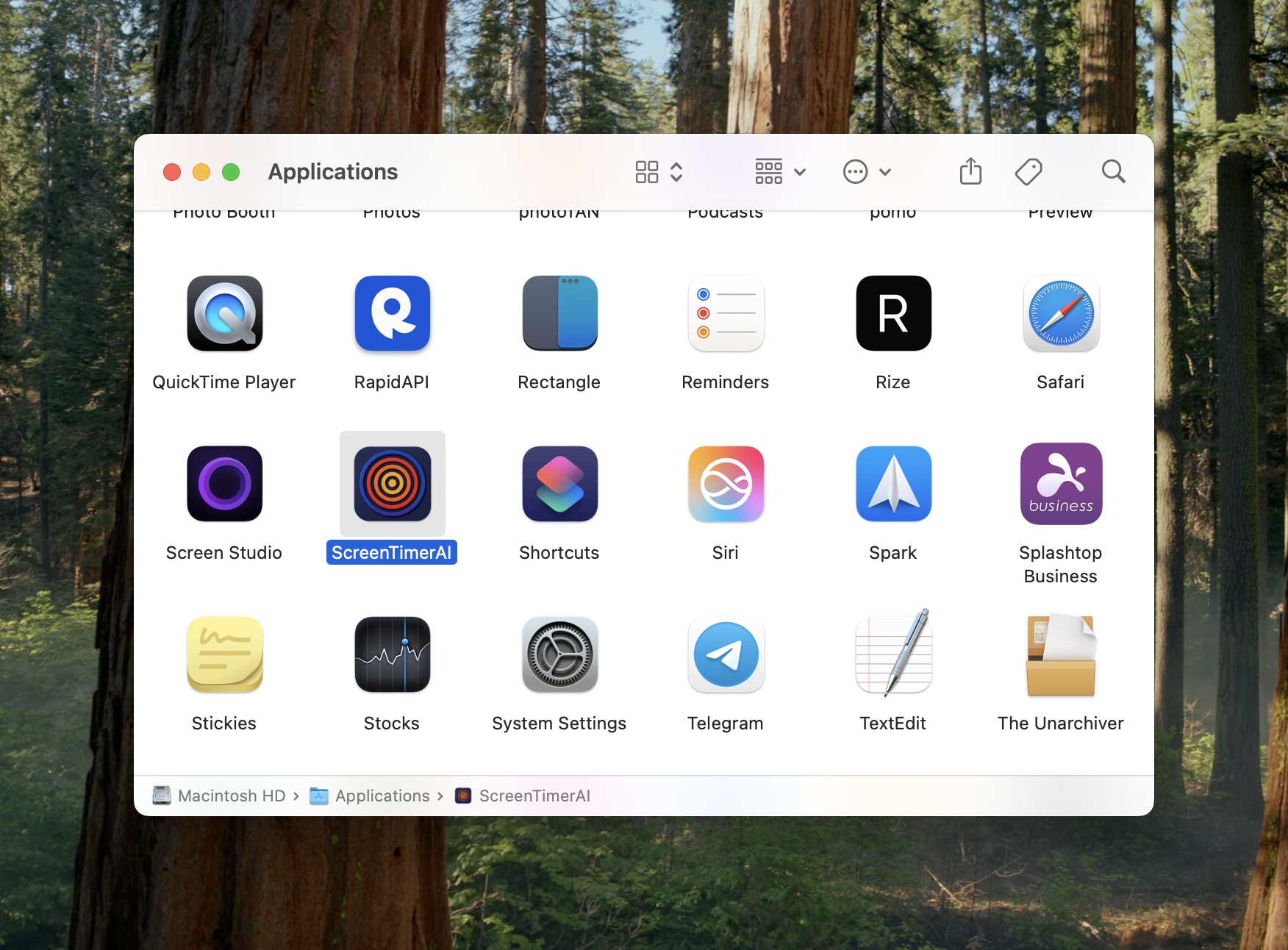
Once downloaded, open the .dmg file and drag the ScreenTimerAI app to your Applications folder:

3. Launch the App
Open ScreenTimerAI from your Applications folder.
4. Grant Permissions
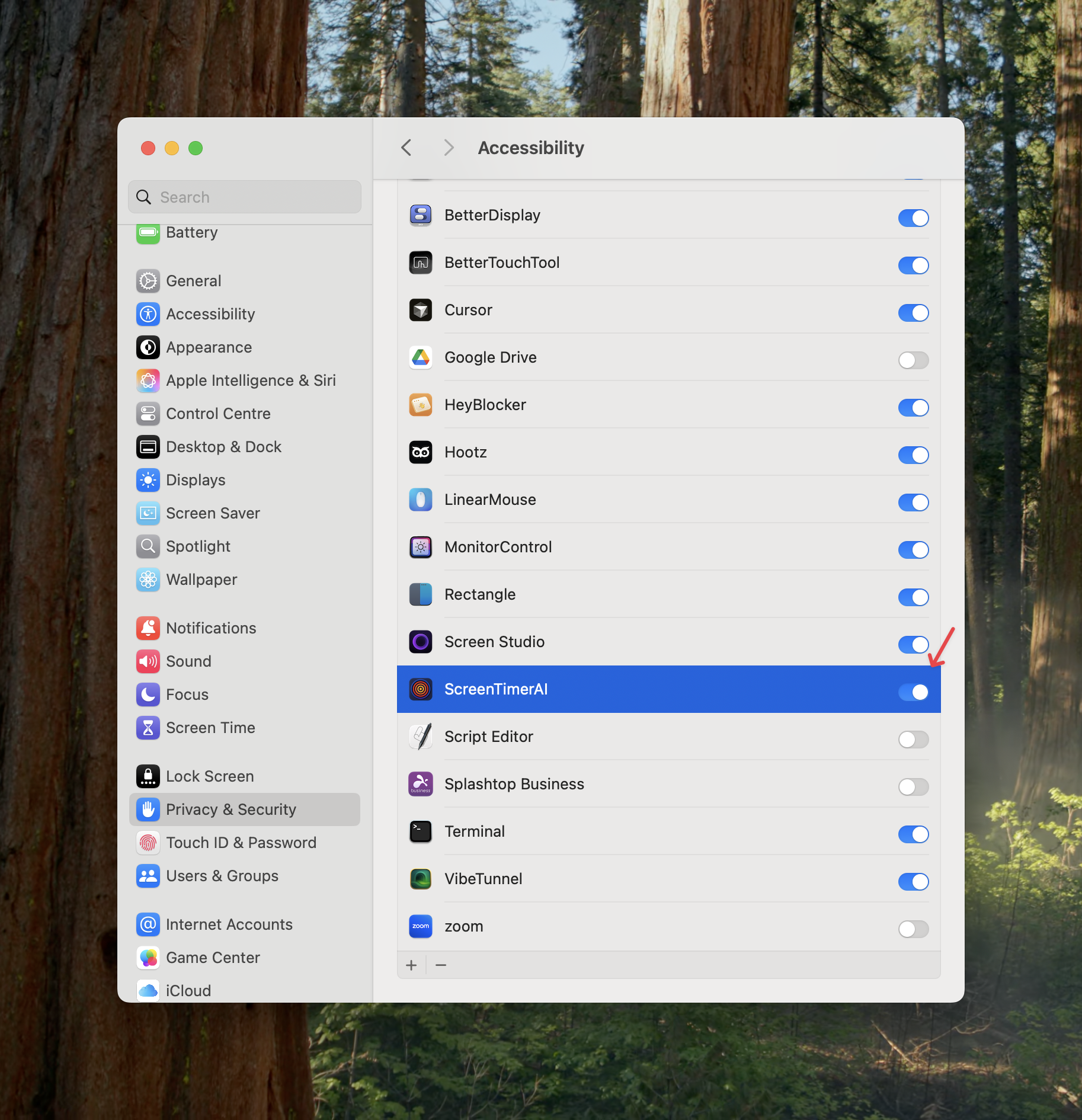
ScreenTimerAI requires Accessibility permission to track when you switch between apps or tabs within your browser. This allows it to create timed entries for each activity. The data is stored locally on your device.
During onboarding, follow the on-screen prompts to grant this required accessibility permission.
You can also grant permission manually in System Settings → Privacy & Security → Accessibility:
5. Activate Your License
We have a 14-day free trial available for ScreenTimerAI. If you want to continue using the app after the trial, you can purchase a lifetime license key.
If you have a license key, enter it when prompted to unlock lifetime usage and updates.
