Define your categories
Categories are the most important setting to properly categorize your screen time. ScreenTimerAI uses AI to categorize your screen time and provide insights based on the categories you define.
We encourage you to create a small set of categories depending on your usecase and interate on them over time to get the best results.
-
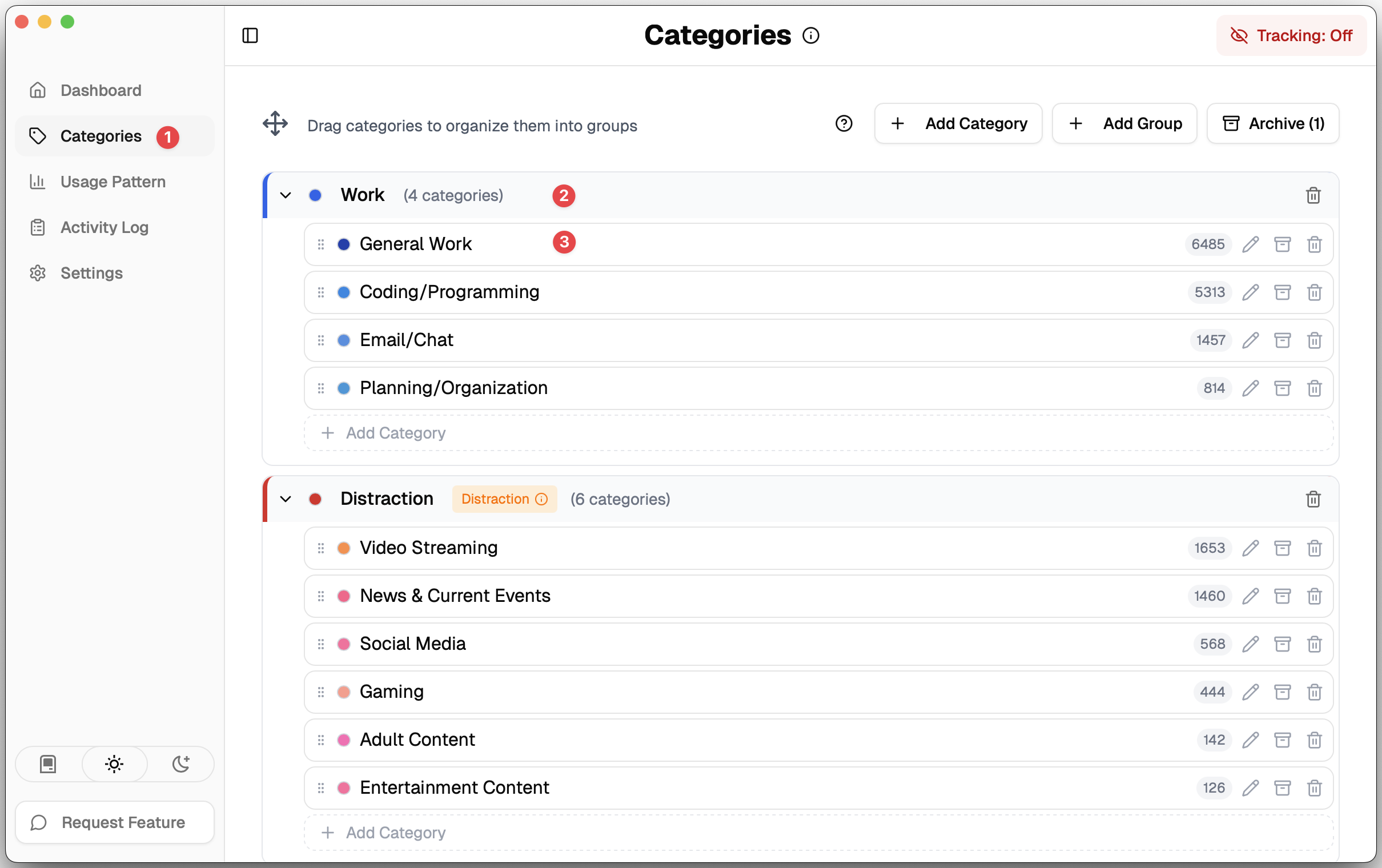
Category Menu: Here you can edit your category definitions.
-
Groups: Groups serves as a layer above categories to organize categories of same type together. Example could be all work related categories or categories belonging to a certain project. Depending on your usecase, you are free to group your categories. Groups are not provided as context to AI and only used for your own orgnization.
-
Category: Each category has a name and description. The name is used to identify the category and the description is used to provide context to the AI. The description can contain any information you see fit to help the AI understand the category better such as a list of keywords or examples of what the category, specific urls or applications, etc. The more specific and concise information you provide, the more accurate the AI will categorize your screen time. Each category can be assigned to maximum 1 group and can be marked as "Distraction". This distraction flag is used to show distraction alert if you choose to enable Distraction Alert in Settings.
Example of a category definition for "Coding/Programming":
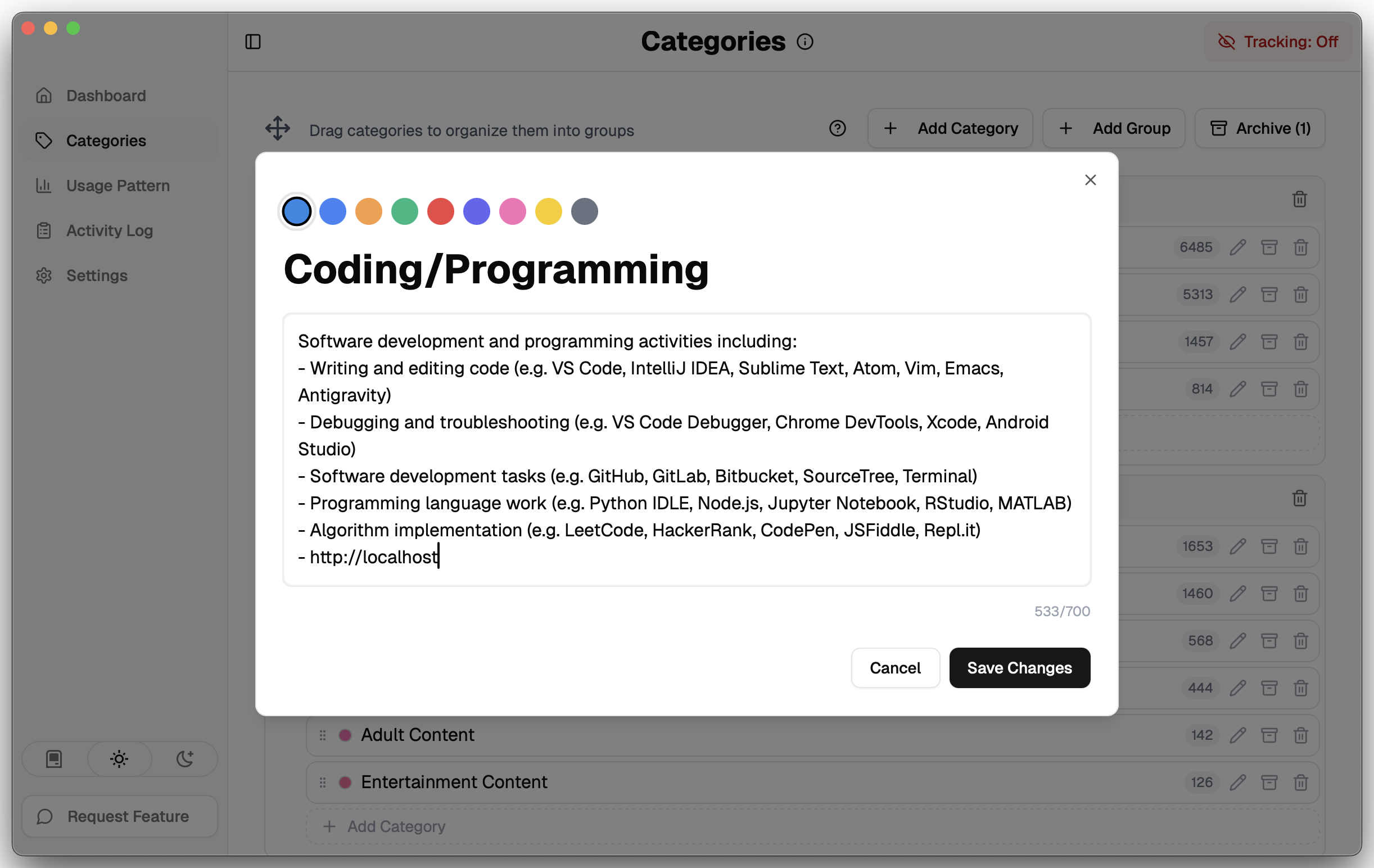
Upon onboarding, ScreenTimerAI will provide you with a set of example categories to get you started. You can always add, remove or modify categories to better suit your needs.