Tracking Settings
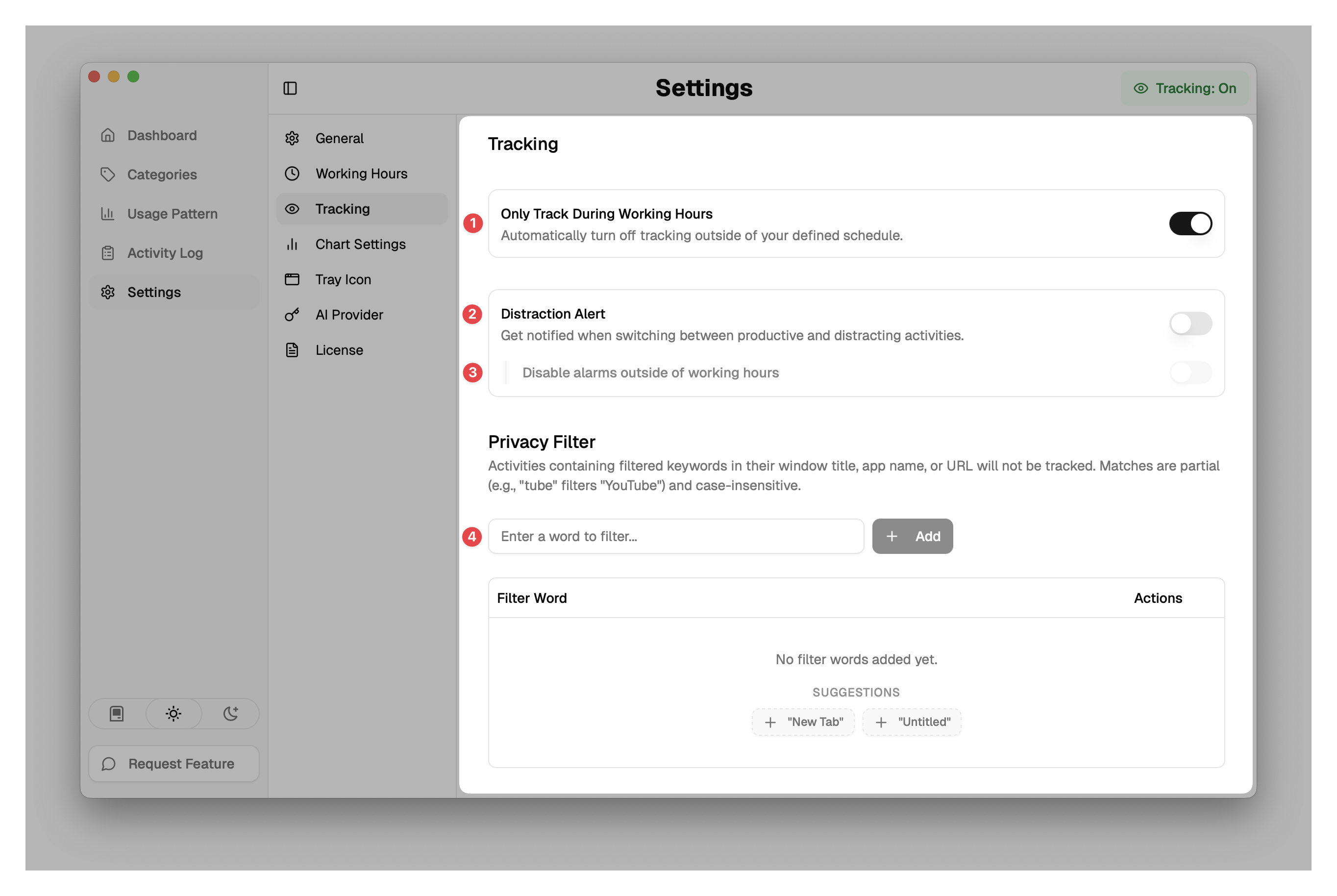
This page details the configuration options available in the Tracking tab. The numbers below correspond to the red annotations in the image above.
1. Only Track During Working Hours
This toggle controls whether ScreenTimerAI automatically restricts tracking to your schedule.
- Enabled: Activities are recorded only during the hours defined in the Working Hours tab. Tracking stops automatically outside these times.
- Disabled: Tracking defaults to "Manual" mode (always on unless manually paused).
2. Distraction Alert
This master switch controls the real-time distraction notification feature.
- Enabled: You will see a popup alert when you switch from a productive activity to a distracting one (or vice versa).
- Disabled: No distraction alerts will be shown.
3. Disable alerts outside working hours
This is a sub-setting for Distraction Alerts.
- Enabled: Distraction alerts will only appear during your scheduled working hours. This prevents alerts from bothering you during your free time while tracking is still active.
The main "Distraction Alert" toggle must be ON to use this setting.
4. Privacy Filters
This section allows you to manage keywords for activities that should be excluded from tracking.
To add a filter:
- Type a keyword (e.g., "password") in the input field.
- Click Add or press Enter.
Features:
- Suggestions: Click on suggested pills like "New Tab" to quickly add them.
- List: View all currently filtered keywords in the table below.
- Remove: Click the trash icon to remove a filter.
More About Privacy Filters
How It Works
Any activity containing a filtered keyword in its App name, Window title, or URL is completely ignored.
Time Attribution
Time spent on filtered activities is not lost; it is attributed to the previous non-filtered activity. This preserves your timeline's continuity while keeping sensitive or irrelevant details private.