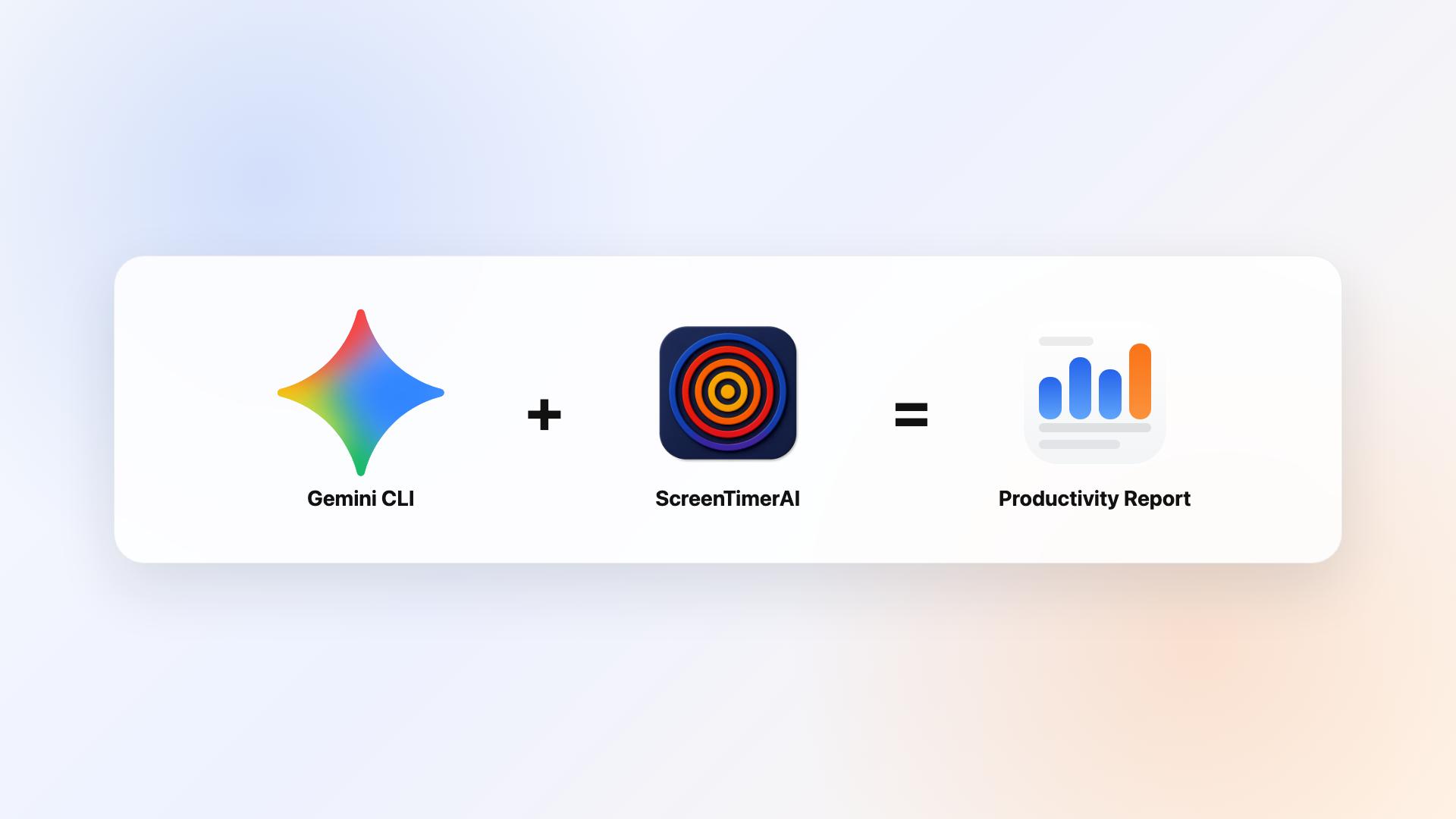
What You Are Making
A Gemini CLI prompt that reads yesterday's screen time data from ScreenTimerAI and generates a short daily productivity report in your terminal.
No browser. No GUI. Just a prompt and a result.
Why Gemini CLI
Gemini CLI is Google's open-source command-line agent powered by Gemini models. It runs directly in your terminal and gives developers access to Google's Gemini models in a terminal-based agent workflow with full MCP support. If you already live in the terminal, adding screen time tracking to Gemini CLI is a natural fit. Gemini CLI supports MCP servers natively through its settings.json config — connecting ScreenTimerAI is just another server entry. Once configured, you get productivity insights right in the terminal alongside your other development tools, without switching context or opening a separate dashboard.
Step 1: Connect ScreenTimerAI To Gemini CLI
Open your Gemini CLI settings file:
~/.gemini/settings.json
Add ScreenTimerAI as an MCP server:
{
  "mcpServers": {
    "screentimerai-activities": {
      "command": "/Applications/ScreenTimerAI.app/Contents/MacOS/activity-mcp-server",
      "args": []
    }
  }
}
Restart Gemini CLI after saving. Verify the connection by typing /mcp list inside a Gemini CLI session.
If you want to test that Step 1 worked, try one of these prompts in Gemini CLI:
| MCP function | Test prompt |
|---|---|
get_current_activity | What am I doing right now? |
get_activity_logs | Get my raw activity logs for yesterday. |
show_activity_timeline | Show me an activity timeline for yesterday. |
summarize_activity_range | Summarize my activity for yesterday. |
analyze_focus_segments | Analyze my focus segments for yesterday afternoon. |
show_focus_score_timeline | Show me a focus score timeline for today. |
show_focus_score_trends | Show me my focus score last week. |
Step 2: Generate Your Daily Report
Start a Gemini CLI session and paste this prompt:
Generate a daily productivity text report based on yesterday's Screen Time AI data.

Follow these steps:

1. Fetch yesterday's activity data from Screen Time AI.
2. Write a short productivity report (~150 words) from the perspective of a dark, witty productivity coach reacting to the data.

Rules:
- Focus more on failures than successes
- Use short, punchy sentences
- Be dark and witty, commanding not polished
- Swearing is allowed sparingly for impact
- Return only the final report text, nothing else

Return the report as plain text directly in the chat.
Gemini CLI will discover the ScreenTimerAI tools automatically and call them to fetch your data. The report appears right in your terminal.
Other Prompts To Try
The daily report prompt above is just one example. Once ScreenTimerAI is connected to Gemini CLI, you can ask anything about your screen time data in natural language. Here are a few more prompts worth trying:
- Top apps breakdown: "Show me my top 5 apps by time spent yesterday." This gives you a quick ranked view of where your hours actually went, which is often surprising.
- Context switching count: "How many context switches did I have yesterday afternoon?" Frequent app switching is one of the biggest productivity killers. This prompt quantifies the damage so you can spot patterns.
- Week-over-week comparison: "Compare my screen time this week vs last week." Useful for tracking whether changes to your routine are actually moving the needle or just feel like they are.
- Focus segment analysis: "Analyze my focus segments for yesterday and identify my most productive hours." This surfaces the time blocks where you stayed locked in and helps you protect those windows going forward.
Troubleshooting
If something is not working after setup, check these common issues:
- Server not showing in
/mcp list? Make sure~/.gemini/settings.jsonhas correct JSON syntax and the binary path/Applications/ScreenTimerAI.app/Contents/MacOS/activity-mcp-serverexists on disk. A missing comma or bracket in the JSON is the most common cause. - Server listed but not connecting? Try
/mcp reloadinside your Gemini CLI session to force re-discovery of available tools. This refreshes the connection without restarting the entire CLI. - Tools not being called? Verify that ScreenTimerAI is running on your Mac and that the MCP server binary is executable. You can check with
ls -la /Applications/ScreenTimerAI.app/Contents/MacOS/activity-mcp-serverin a separate terminal window.
What Happens Next
Every time you run the prompt, Gemini CLI pulls your latest screen time data through the MCP connection and generates a fresh report.
Use it as a quick morning check-in from your terminal.